How do I prepare MS SQL database cluster for collection by Nanitor?
Introduction
Nanitor supports a whole range of Microsoft SQL servers and connects directly to them via a TCP/IP connection and performs an audit. As recommended by CIS we encourage the use of Windows Authentication instead of the deprecated SQL Server Authentication.
For the end-to-end onboarding overview, see How do I collect from Microsoft SQL Server?. For a quick summary of the credentials format and required permissions, see Setup and configure users for the collector → Microsoft SQL.
Preparation
Nanitor requires a user in order to connect to MS SQL and collect all information and will run various commands on all databases it can access on the server it is connecting to. In this example we use Microsoft SQL Server Management Studio to grant a Windows user called Nanitor access to a MS-SQL database. It is out of scope of this document how to create an Active Directory users. In this example we have already created an Active Directory user called Nanitor.
Before
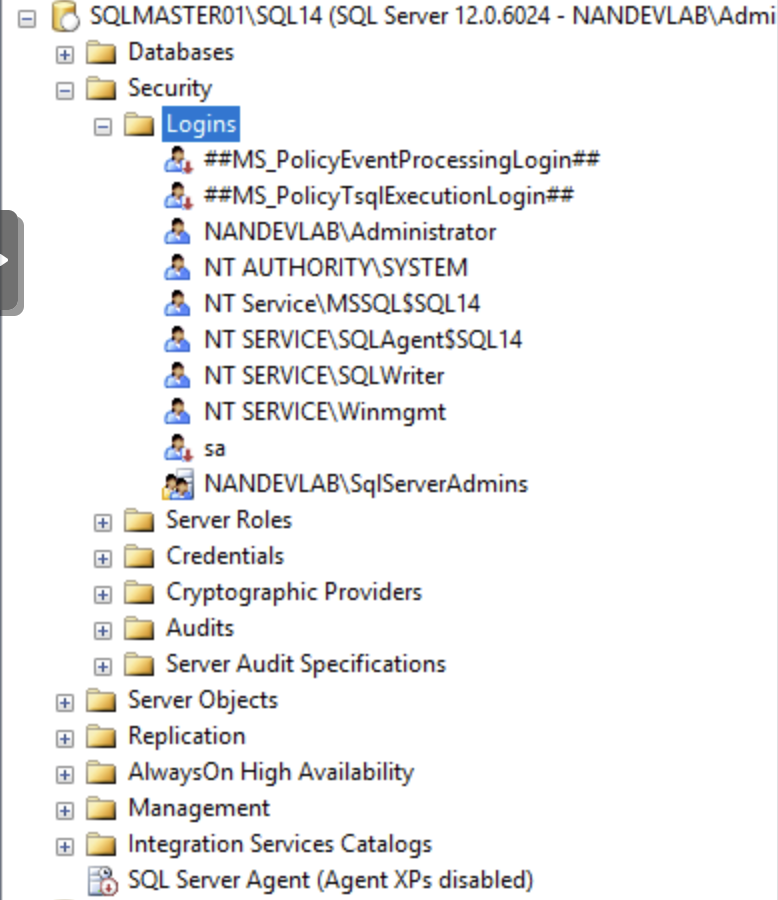
The image above shows before we have granted the Nanitor user access to the Database cluster.
Granting the user access.
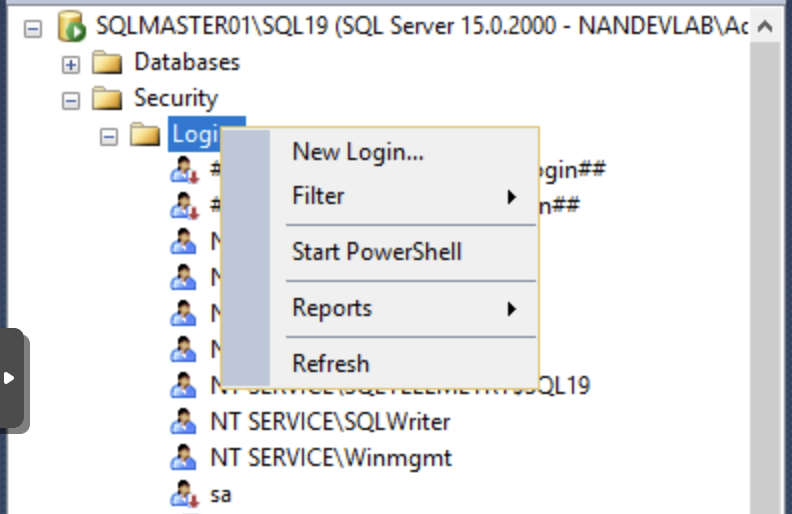
Now we navigate to the database cluster, expand the Security tab and right-click on the Logins tab.
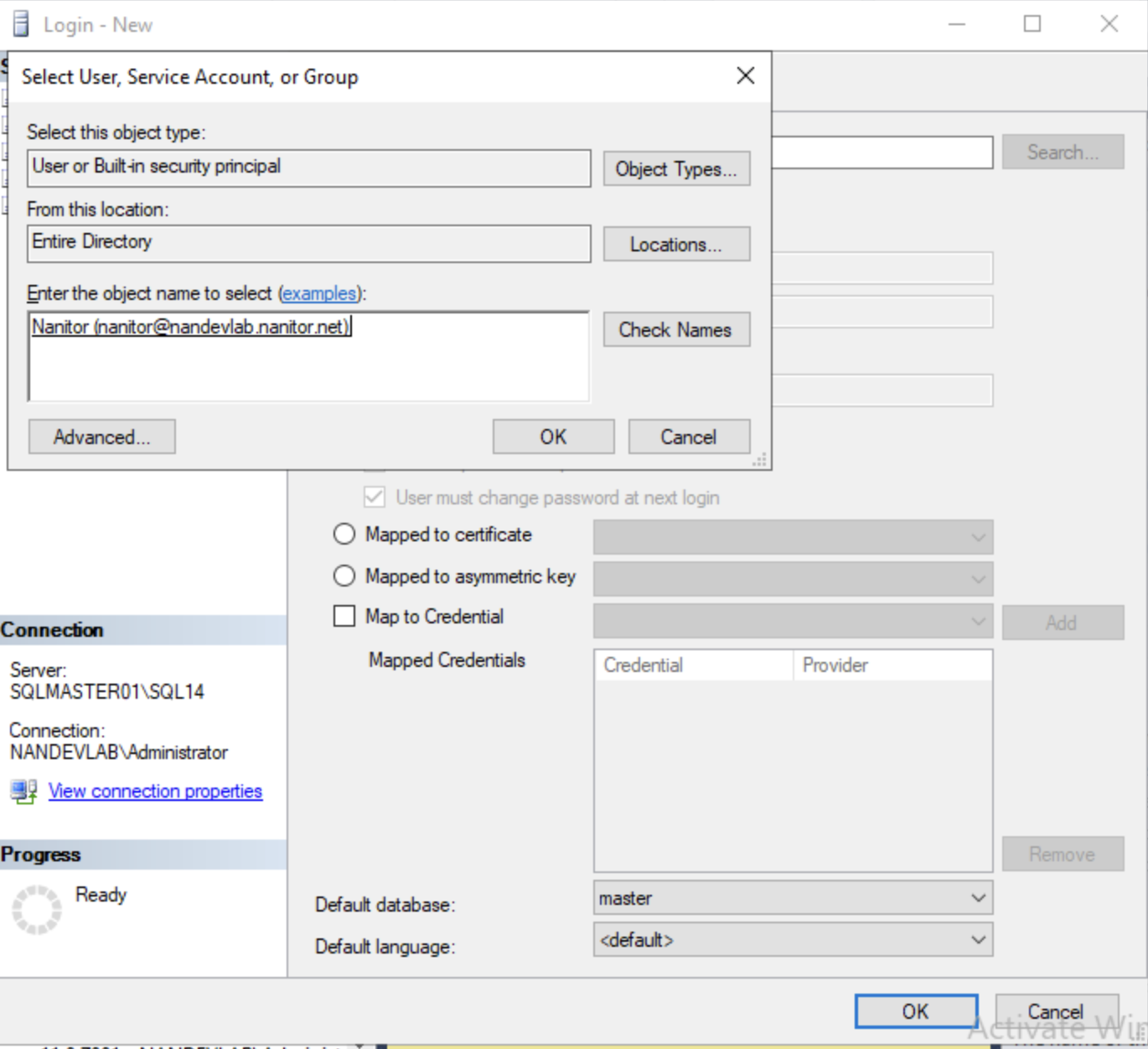
Then fill out the login information and find the right Active Directory user in Entire directory and click OK.
Then navigate to User role mappings and grant the user access to all databases, it only requires access to the public role.
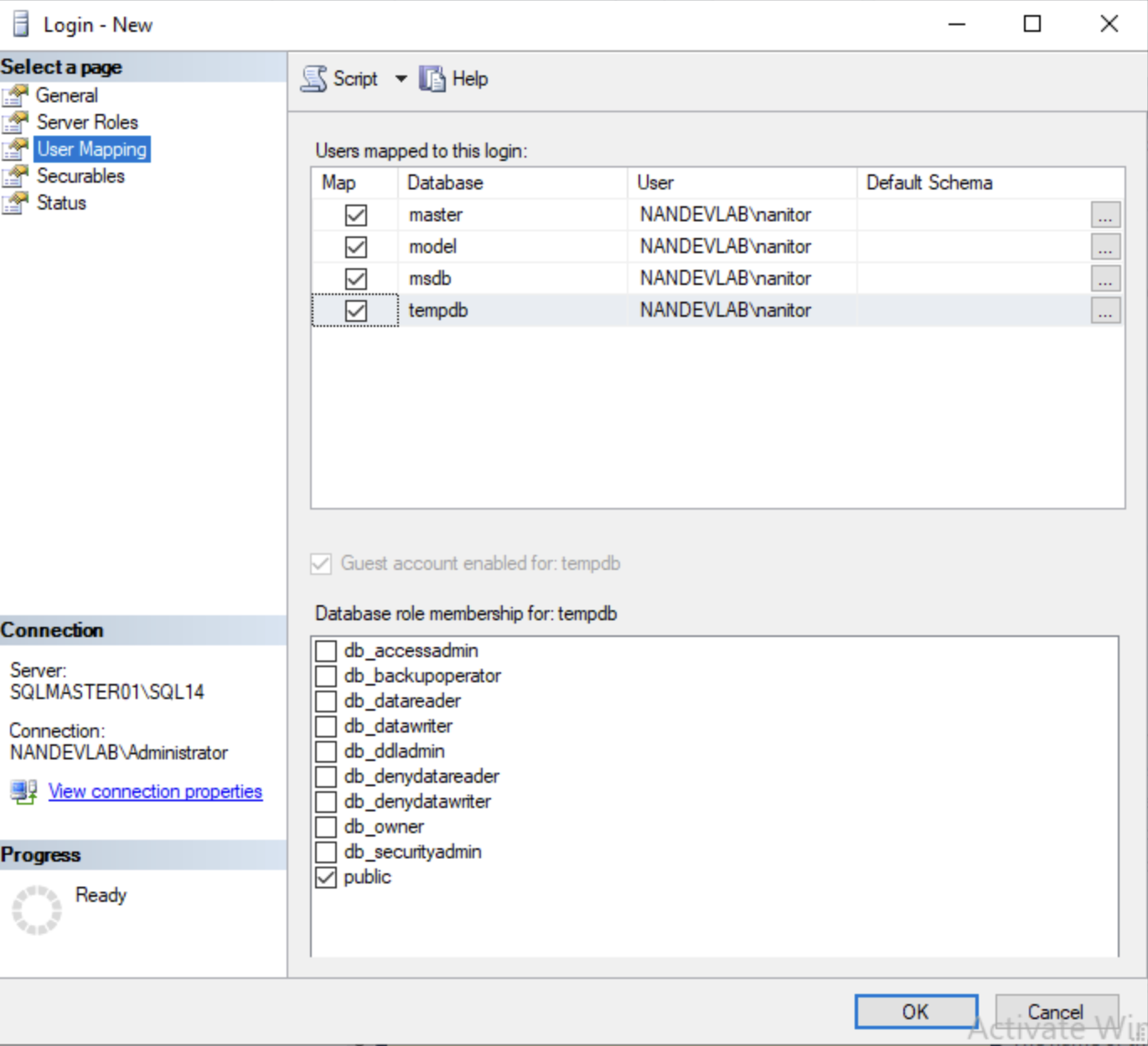
After this is complete, click OK to save the settings.
After
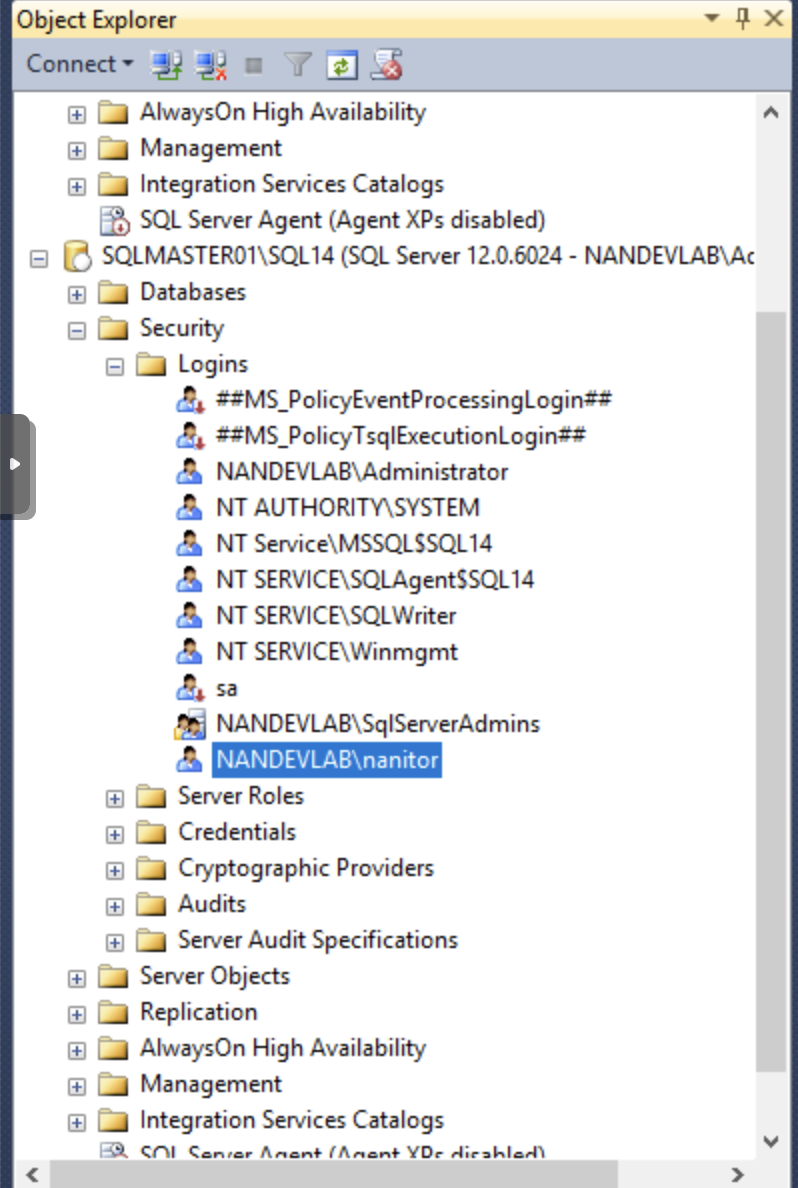
The image above shows after we have granted the Nanitor user access to the Database cluster.
Now the Windows user is ready to be used as an SQL credential the Nanitor collector UI.
Troubleshooting
Permission was denied
When you get the following message in the collector debug window when trying to onboard a MSSQL database,
Error checking in benchmark: mssql: The SELECT permission was denied on the object 'sysproxies', database 'msdb', schema 'dbo'.
mssql: The user does not have permission to perform this action.
you need to adopt the permissions on the MSSQL database for the Nanitor user. Apply the following commands to resolve the permission issue.
use [msdb]
grant select on [msdb].[dbo].[sysproxies] to [nanitor_user]
grant select on [msdb].[dbo].[sysproxylogin] to [nanitor_user]
use [master]
grant view server state to [nanitor_user]
grant view any definition to [nanitor_user]
Information
Replace nanitor_user with the username you use for connecting to the MSSQL database
Missing VIEW ANY DEFINITION causes silent benchmark false positives
Without VIEW ANY DEFINITION, SQL Server catalog views such as sys.server_audit_specification_details silently return zero rows rather than raising a permissions error. This makes correctly-configured CIS benchmark checks — for example, "Ensure 'SQL Server Audit' is set to capture both 'failed' and 'successful logins'" — appear to fail with no obvious cause. Granting VIEW ANY DEFINITION to the Nanitor user is required for these checks to evaluate correctly.
Availability Group Database in Read-Only Mode
When you get the following message in the collector debug window when trying to onboard a MSSQL database,
Could not connect to database:
mssql: The target database ('databaseName') is in an availability group and is
currently accessible for connections when the application intent is set to read
only.
To avoid the error, edit your collected MSSQL Asset to include a specific starting point database along with the read-only intent, like so: databaseName;ApplicationIntent=ReadOnly;

Information
Replace databaseName with one of the databases in your MSSQL server