Automatic device labeling
Labels
Labels are a necessity for a proper asset priority rating but are also a great way to filter Nanitor issues or certain reports for a subset of assets. Labels are also used in many dashboards and reports to group reports which help in gaining focused output. Labeling devices for reporting purposes does not interfere with labeling devices for asset rating purposes. The applied asset rating is always drawn from the asset with the highest priority rating. For that reason, "reporting" labels do not or should not have an asset rating unless needed.
Automatic labels
Automatic labeling makes labeling easy. Automatically assigned labels are also dynamic since you simply apply a rule that will be applied to existing assets and assets that are added to Nanitor in the future.
- Create a label according to the instructions for asset labeling
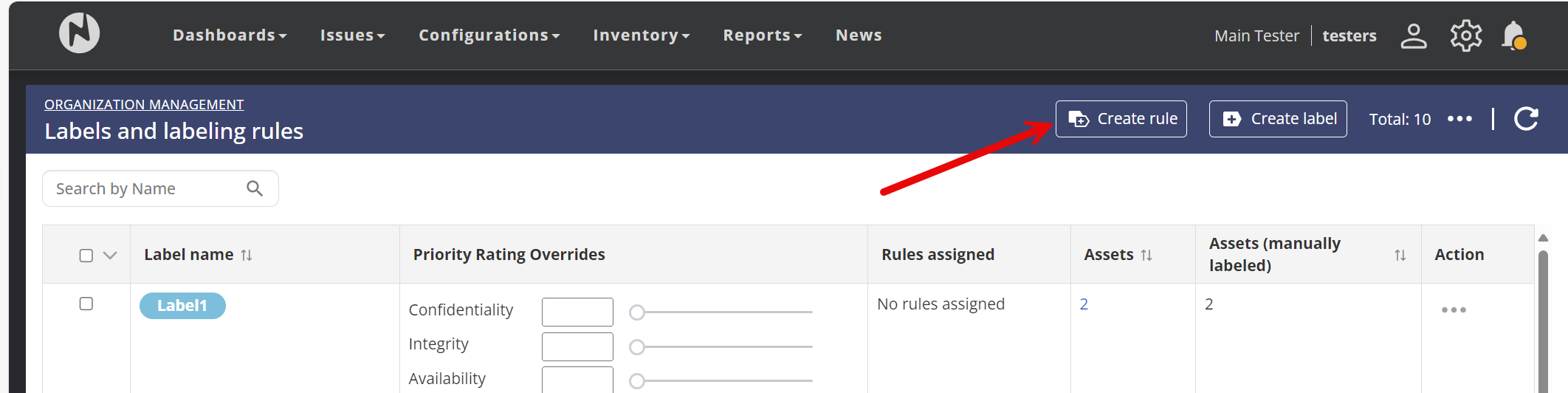
- Navigate to Labels from the administration menu (see previous step) and click on "Create Rule" from the top right menu.
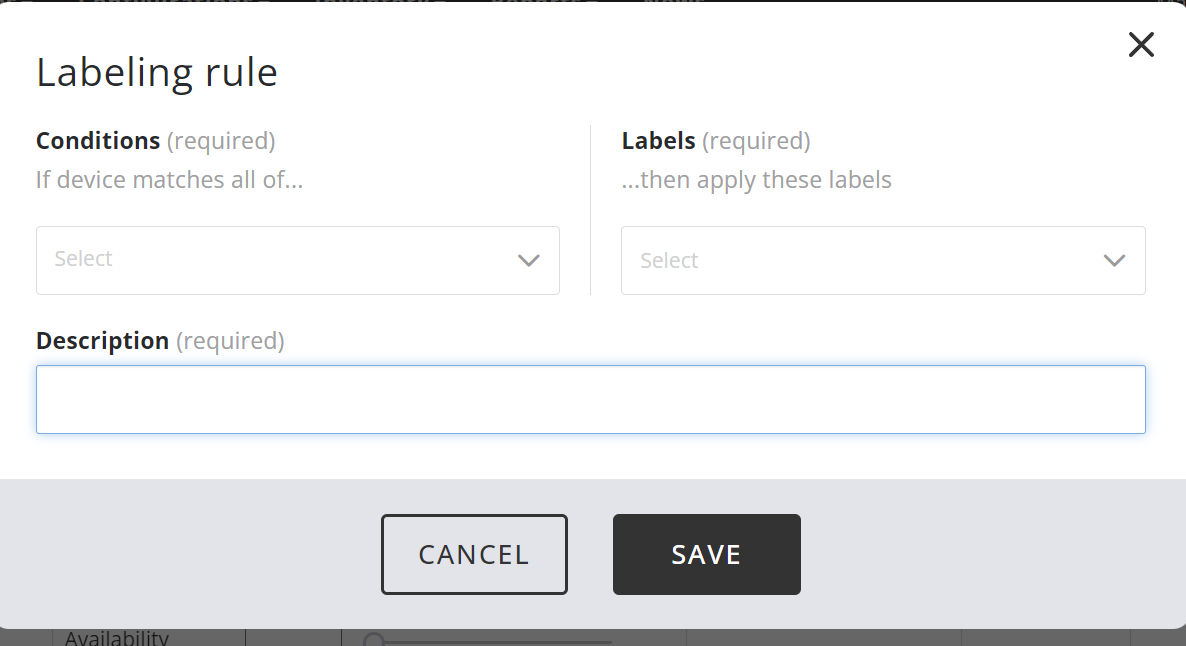
- From the upcoming menu choose a descriptive name for the rule to be created. For the automatic assignment, you can choose from various options (e.g., operating platform or AD groups so only a few are mentioned) and finally pick the label to be applied
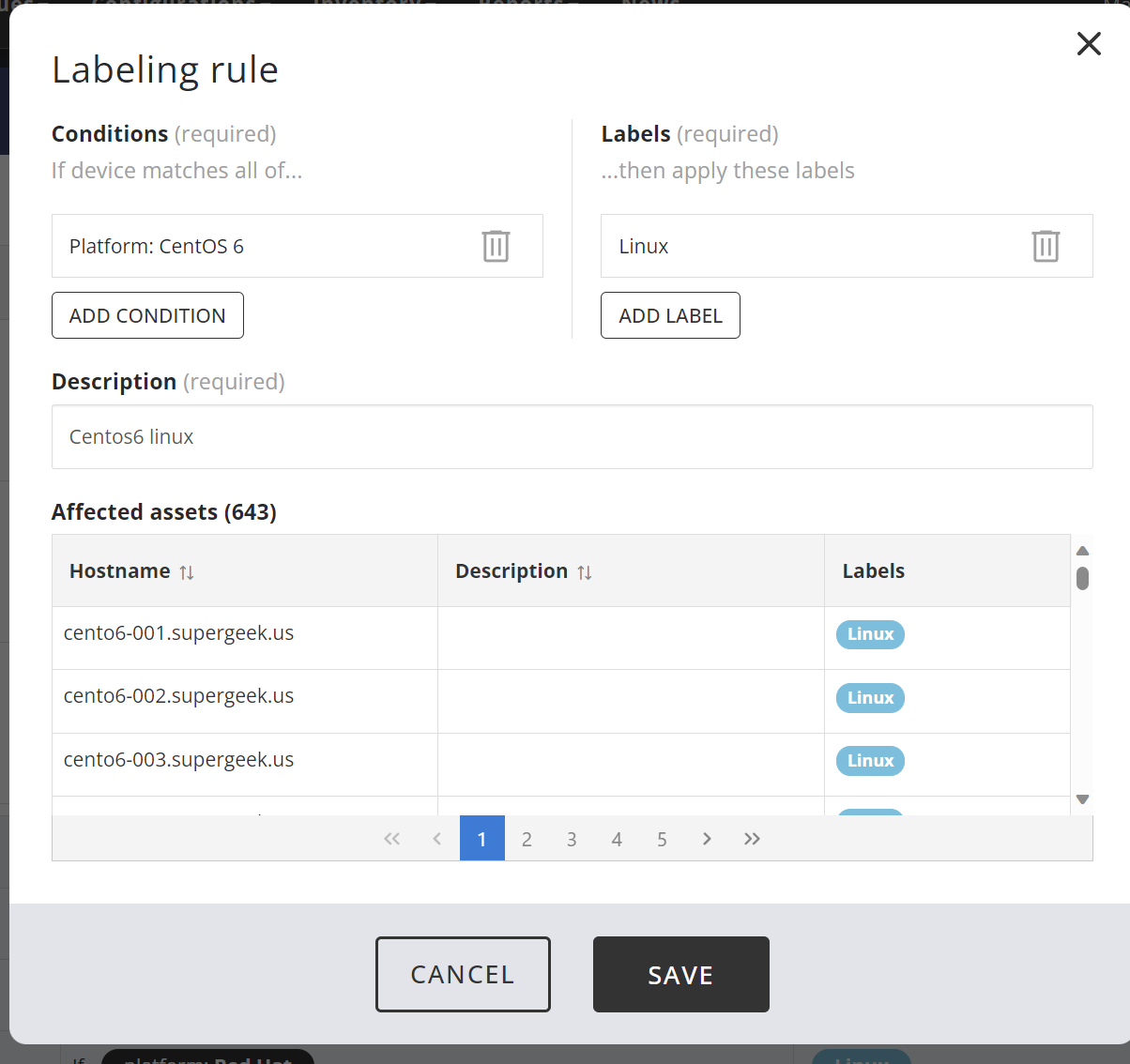
- A fully populated rule could look similar shown in the screenshot below. You could also apply multiple rules to limit the scope even further
Condition Logic: AND and OR
Labeling rules support flexible condition logic:
AND Logic (Between Condition Types)
Different types of conditions (e.g., Platform AND Hostname) are evaluated together. An asset must match ALL condition groups to receive the label.
Example: If you have conditions for both "Platform is Windows" AND "Hostname contains 'srv'", an asset must match both to get the label.
OR Logic (Within Same Condition Type)
Multiple values of the same condition type are evaluated with OR logic. Click the + button next to a condition to add additional values.
Example: "Platform is Windows OR Linux OR macOS" means the asset can match any of these platforms.
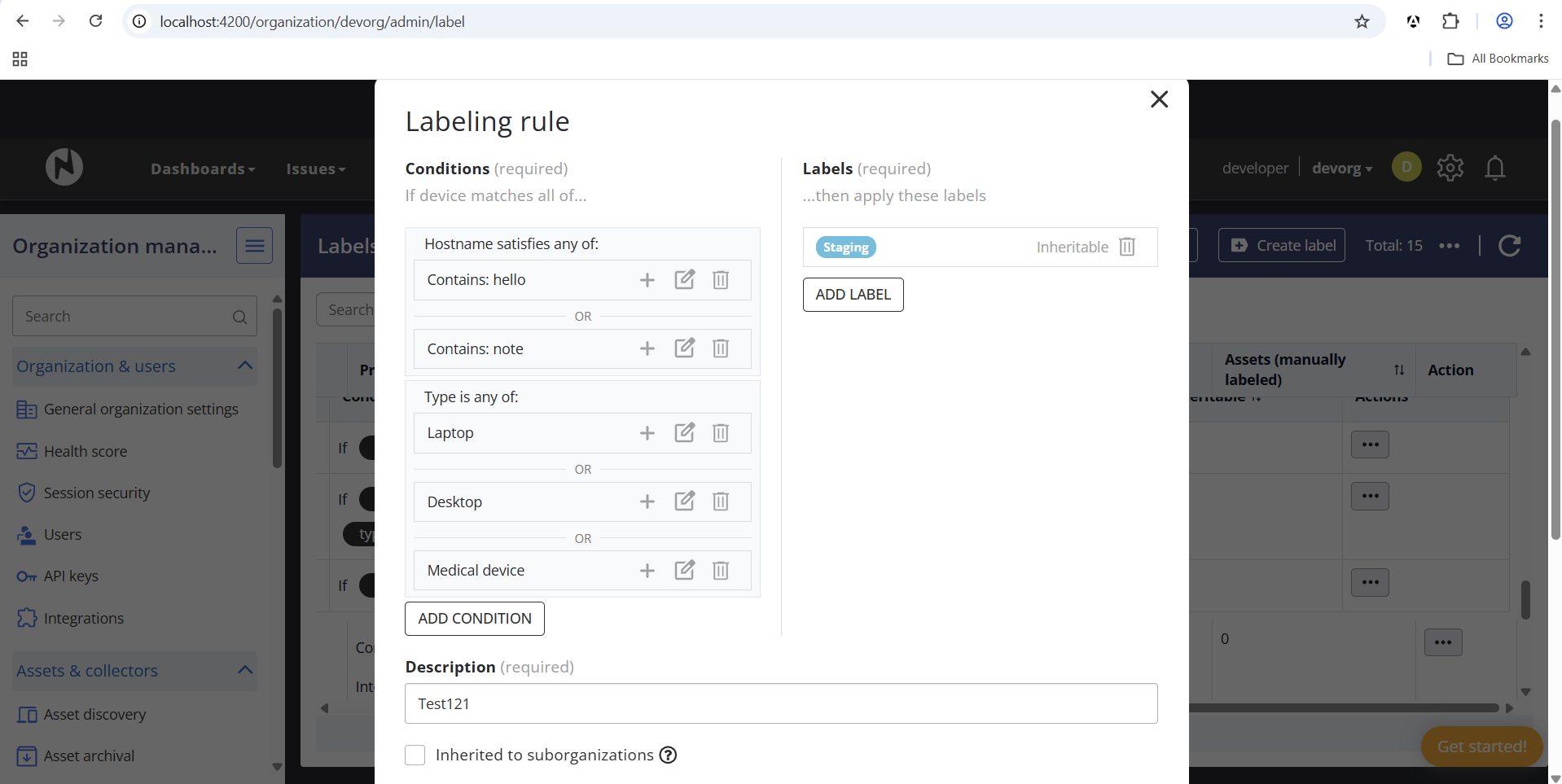
This allows you to create powerful rules like: "Apply label 'Linux Servers' if Platform is (CentOS OR Ubuntu OR RedHat) AND Type is (Server OR Cloud)"
Checkbox Custom Fields
You can also use checkbox-type custom fields as conditions:
- Select "Custom field is checked/unchecked" as the condition type
- Choose the checkbox custom field
- Specify whether to match when it is "Checked" or "Unchecked"
This is useful for labeling assets based on boolean properties tracked in custom fields.
Tips
- You can apply multiple labels to the same rule.
- Use OR logic within condition types to reduce the number of rules needed.
- Rules are evaluated automatically when assets are added or updated.